WooCommerce Checkout Optimization: A Practical Guide to Faster Mobile Checkout
In this article (12)
A WooCommerce checkout can look perfectly fine on a desktop and still be frustrating on a phone. A customer might encounter an unnecessary form field, a payment button that never appears, a shipping total that takes too long to update, or a spinner that does not disappear.
These issues deserve investigation, but there is no universal “zero-bloat” snippet that makes every checkout faster. WooCommerce stores use different themes, payment gateways, shipping rules, extensions, and—most importantly—two different checkout architectures.
This guide explains how to identify the checkout you have, remove avoidable friction, audit frontend and server-side performance, and test your changes without breaking payments or order processing. It is an educational implementation guide, not a client case study; any improvements should be measured on your own store.
1. Identify Your Checkout: Block or Classic?
Before editing a hook or removing a script, open Pages → Checkout in WordPress. Confirm that this is the page assigned under WooCommerce → Settings → Advanced.
- Checkout Block: The page uses WooCommerce’s Checkout block, usually with nested Checkout Fields and Checkout Totals blocks. New WooCommerce installations have used block-based Cart and Checkout pages by default since WooCommerce 8.3.
- Classic checkout: The page renders the
[woocommerce_checkout]shortcode. Its field filters, templates, JavaScript events, and AJAX requests differ from the Checkout Block.
This distinction matters because a popular PHP snippet can work on a classic store and silently do nothing on a block-based store.
| Task | Checkout Block | Classic shortcode checkout |
|---|---|---|
| Hide company or address line 2 | Check block editor Address Fields settings first | Use supported checkout-field filters |
| Hide order notes | Remove or configure the relevant block in the editor | Use checkout fields or the classic setting/filter |
| Add a custom checkout field | Additional Checkout Fields API | Classic field hooks and validation |
| Diagnose order-summary updates | Inspect Store API requests and block data flow | Inspect ?wc-ajax=update_order_review and related classic checkout behavior |
| Customize payment UI | Use gateway integrations compatible with the Checkout Block | Use gateway integrations compatible with classic checkout |
Developer reference: Cart and Checkout Blocks by default, Checkout Block documentation, and hook alternatives.
2. Measure Before Changing Anything
Do not start by installing a checkout optimization plugin or pasting ten snippets into functions.php. First, reproduce a specific problem.
Create a staging environment with the same active theme, extensions, gateway configuration, and representative test products. Make sure the test environment cannot send real customer notifications or unexpectedly collect live payments.
Then open the checkout on a mobile-sized viewport in Chrome DevTools:
- In Network, preserve the log, use an appropriate throttling profile, and inspect the document, CSS, JavaScript, Fetch/XHR requests, and failed responses.
- In Performance, record a realistic checkout journey: enter an address, change shipping method, apply a coupon, and interact with the payment section.
- Note the longest requests and main-thread tasks. A slow response from a shipping-rate service is a different problem from a JavaScript task blocking a tap.
- Repeat the test, including a cold first load and a warmed repeat load. Compare like with like: same device profile, cart contents, shipping destination, and extensions.
- Record checkout errors and completion behavior, not only performance scores.
The following metrics answer different questions:
| Metric | What it can tell you | What it cannot prove |
|---|---|---|
| LCP (Largest Contentful Paint) | How quickly the main visible content appears | Whether a customer can complete payment |
| INP (Interaction to Next Paint) | Responsiveness to user interactions | That any one network request alone caused the delay |
| CLS (Cumulative Layout Shift) | Whether visible content shifts unexpectedly | Whether the form is understandable |
| Request timing / TTFB | Whether a document or API response is slow | Whether removing a form field improves conversion |
| Checkout completion rate | How often a defined group of checkout starters finishes | Why a change occurred without a reliable comparison |
For field data, an INP of 200 ms or less at the 75th percentile is considered good. A local DevTools trace can help diagnose slow interactions, but one local trace is not a store’s field INP score. Some checkout URLs also lack enough public field data to receive a standalone Chrome UX Report result.
Developer references: Chrome Network panel, Chrome Performance panel, and web.dev: INP.
3. Simplify Checkout Fields Without Breaking Fulfillment
Shorter forms can be easier to use, but “remove as many fields as possible” is not a safe rule. Payment processors, shipping carriers, tax calculations, address validation, and fraud checks may require specific details. Even an optional second address line can be important for apartment or unit numbers.
Start with a field inventory. For every input, ask:
- Is it needed for payment, tax, shipping, delivery instructions, or legal compliance?
- Is it required by the active payment or fulfillment integration?
- Can it be optional rather than required?
- Does WooCommerce already prefill it for returning customers?
- Would hiding it create extra customer-service work later?
For Checkout Blocks: Use the Editor First
Open the assigned Checkout page, select Checkout Fields in List View, and inspect the Address Fields settings. WooCommerce currently exposes visibility controls for Company, Address line 2, and Phone, along with optional/required settings where applicable.
If your store does not need customer order notes, remove the applicable Order Notes block in the editor rather than relying on a classic PHP filter. Keep country, tax, and delivery fields where they are required for your store’s operation.
For custom block-checkout fields, use woocommerce_register_additional_checkout_field() and its supported validation/sanitization approach—not the classic woocommerce_checkout_fields filter.
Developer references: Checkout Block settings, Additional Checkout Fields API, and removing checkout fields.
For Classic Checkout: Use a Scoped Field Filter
If your checkout page uses [woocommerce_checkout], you can remove selected optional fields through WooCommerce’s classic checkout filter:
/**
 * Classic shortcode checkout only.
 * Add to a small custom plugin or a child theme after testing.
 */
add_filter( 'woocommerce_checkout_fields', function ( $fields ) {
    // Example: a consumer-only store that never needs a company name.
    unset( $fields['billing']['billing_company'] );

    // Example: remove customer order notes only if fulfillment
    // does not depend on them.
    unset( $fields['order']['order_comments'] );

    return $fields;
}, 20 );
This code intentionally does not remove the shipping address, postcode, phone number, or address line 2. Decide whether those fields are needed from your operational requirements, not their visual height. If you do change address fields, verify billing and shipping behavior for each country you serve.
The woocommerce_checkout_fields filter does not customize core fields in the Checkout Block. WooCommerce documents separate customization paths for blocks, including country-locale controls for certain address fields; its developers caution against removing fields without understanding the effects on tax, fraud prevention, and checkout validation.
Developer reference: Customizing checkout fields with hooks and WooCommerce checkout-field locale advisory.
4. Diagnose Slow Checkout Updates Before Touching AJAX
A slow checkout update does not necessarily mean WooCommerce sends a request on every keystroke. The behavior depends on whether the store uses classic checkout or blocks, the fields changed, and any extensions that listen for those changes.
In the Network → Fetch/XHR view, interact with a single field at a time and look for:
- Repeated or overlapping requests when a postcode, country, or shipping option changes.
- Slow response times from shipping or tax calculations.
- HTTP errors, invalid JSON, or gateway failures.
- An extension triggering unnecessary refreshes or repeated calculations.
On classic checkout, you may see the ?wc-ajax=update_order_review endpoint. On Checkout Blocks, WooCommerce uses its Store API and block-specific data flow; classic update_order_review hooks and fragments are not used in the same way.
If one extension is responsible for redundant requests, investigate its settings, compatibility, and event handling. Do not blindly disable checkout updates, suppress Store API calls, or globally remove WooCommerce scripts: those requests may be necessary to keep shipping, taxes, totals, and payment state correct.
Developer references: WooCommerce hook alternatives and Checkout Block data flow.
5. Audit Third-Party JavaScript and CSS Carefully
Sliders, chat widgets, social-sharing tools, analytics integrations, and page builders can add resources to the checkout. But not every script loaded there is “bloat.” Some are required for address lookup, consent management, fraud checks, fraud-detection signals, analytics, accessibility, or payment processing.
A safer optimization process is:
- Identify the actual JavaScript or stylesheet URL in DevTools and whether it affects loading or interaction performance.
- Identify which plugin or theme enqueues it, and find the registered WordPress handle (for example, by inspecting the enqueue code or using a debugging tool).
- Confirm that the feature is not needed anywhere in the checkout, including validation and payment completion.
- Dequeue only the confirmed unused handles on a staging site.
- Test checkout again, then compare the network waterfall and critical user journeys.
Here is a template, not a list of real WooCommerce plugin handles:
/**
 * Example only: replace these placeholder handles with verified,
 * non-essential handles from your site's theme or plugins.
 */
add_action( 'wp_enqueue_scripts', function () {
    if ( ! function_exists( 'is_checkout' ) || ! is_checkout() ) {
        return;
    }

    // Keep order confirmation behavior separate from checkout editing.
    if ( function_exists( 'is_order_received_page' ) && is_order_received_page() ) {
        return;
    }

    wp_dequeue_script( 'example-unused-slider-script' );
    wp_dequeue_style( 'example-unused-slider-style' );
}, 1000 );
wp_dequeue_script() and wp_dequeue_style() remove enqueued assets by their registered handles; they do not magically recognize filenames, and they may not remove scripts printed directly into templates or injected by external tooling. A later enqueue or a dependency can also change what actually loads.
Never indiscriminately dequeue gateway scripts, WooCommerce’s own checkout functionality, anti-fraud tooling, or site policies. Test all payment methods after every change.
Developer references: WordPress wp_dequeue_script(), wp_dequeue_style(), and web.dev on third-party JavaScript.
6. Check Server Response Times and Cache Exclusions
Removing frontend scripts will not fix a slow server-side shipping calculation or overloaded hosting environment. Check the timing of the checkout document and the relevant AJAX or Store API requests separately.
Investigate unusually slow responses through server logs, application profiling, gateway logs, and a temporary performance profiler on staging. The root cause could be an external shipping integration, database queries, slow PHP execution, or a plugin performing expensive work during checkout.
Also inspect your page cache, CDN, and reverse proxy rules. Cart and checkout pages contain customer-specific state and generally should not be served from a shared full-page cache. WooCommerce’s caching guidance also calls for excluding relevant dynamic/cart requests and customer-session data from inappropriate caching.
Do not “fix” slow checkout by caching personalized HTML or API responses as if they were public product pages. Serving the wrong cart totals, shipping selection, or customer data would be far worse than an extra second of latency.
Developer reference: Configuring caching plugins for WooCommerce and troubleshooting endless checkout loading.
7. Enable Express Checkout Where It Is Actually Supported
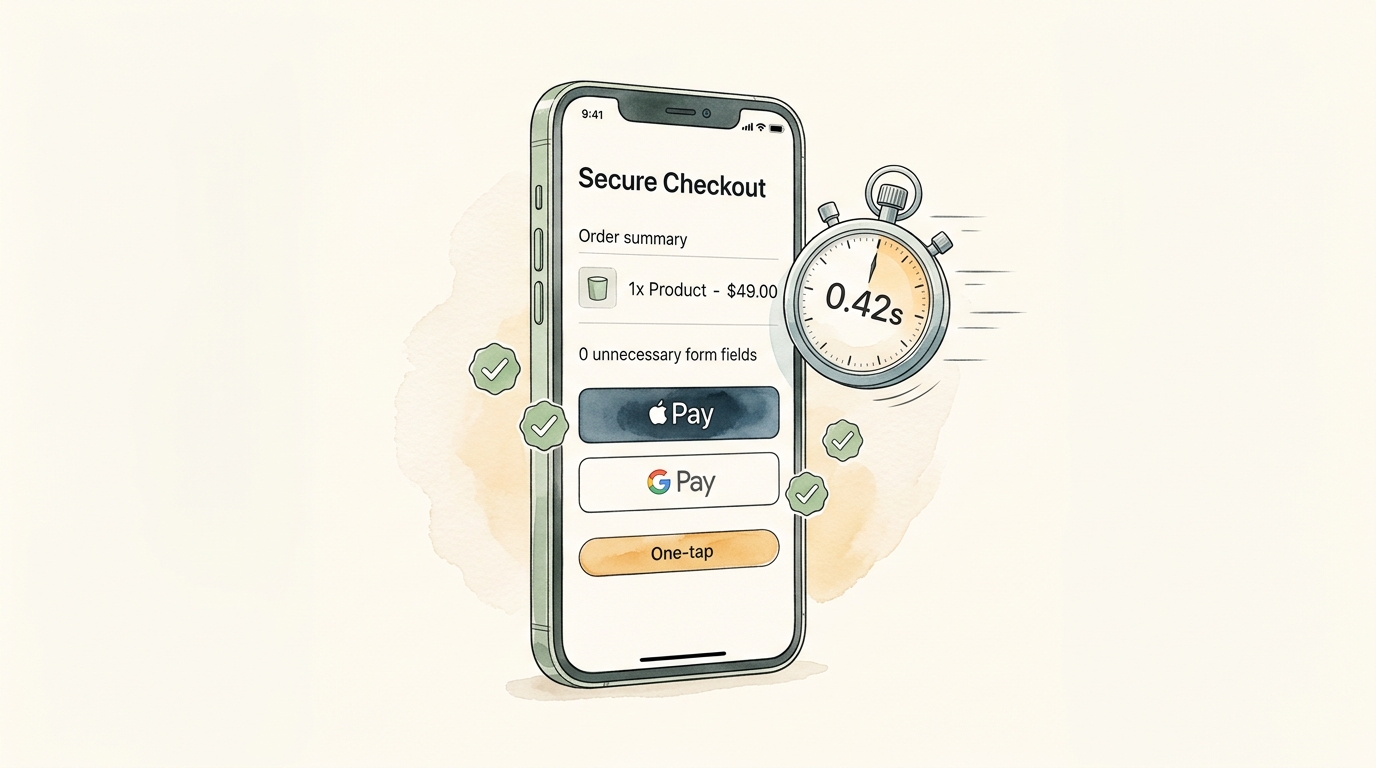
Express payment methods—such as Apple Pay, Google Pay, and Link, depending on the gateway and merchant setup—can reduce manual entry for eligible shoppers. They are not guaranteed to display on every phone, in every country, or for every cart.
For the official Stripe for WooCommerce extension:
- Connect and configure the Stripe account through the extension’s supported setup process.
- Check the available express-payment settings and enable the methods your business can use.
- Confirm that the site has HTTPS and that applicable payment-method domain requirements are satisfied.
- Confirm that the selected gateway supports your checkout architecture and product types.
- Test on compatible devices and browsers with a configured wallet or saved payment method.
- Test actual order creation and failure handling using the extension’s test mode before enabling live payments.
The checkout’s Express Checkout block only displays relevant buttons if an active payment integration supports them. If the buttons do not show, that can be expected behavior on an unsupported browser or device; it is not always a broken checkout.
Express payments can also have important interactions with custom required checkout fields and tax calculation. Check the gateway documentation before assuming that an express-wallet checkout supplies every detail a custom fulfillment process needs.
Do not promise “payment in two seconds” or claim customers skip a fixed number of fields: authorization, additional authentication, shipping selection, and gateway response times vary.
Developer references: Stripe express checkout setup, Stripe testing, and Checkout Block express checkout.
8. Improve Mobile Usability Without Hiding Necessary Information
Performance is only one part of a checkout experience. Audit these details on real phones when possible:
- Input labels: Keep labels visible and understandable; do not rely only on disappearing placeholders.
- Keyboard and autofill: Use appropriate input types and autocomplete attributes when customizing forms, but check WooCommerce’s existing output before overriding anything.
- Error messages: Explain what failed, display errors near the relevant field, and keep entered values where possible.
- Order totals: Make shipping, taxes, discounts, and the final payable amount easy to review.
- Guest checkout: If appropriate for your business, review the option under WooCommerce → Settings → Accounts & Privacy. Do not force account creation without a reason.
- Payment visibility: Keep the selected method and any gateway-specific instructions easy to understand, especially after dynamic updates.
- Accessibility: Check touch targets, keyboard focus, zoom, and screen-reader labels. Don’t hide important checkout content with CSS simply to make a screenshot look shorter.
There is no universal requirement that the payment button must remain “above the fold.” A longer, readable form that successfully collects a deliverable address is better than a shorter one that causes failed orders.
Developer reference: WooCommerce Accounts and Privacy settings.
9. Test a Full Checkout Matrix Before Deploying
A successful page load is not enough. Test the complete transaction flow with representative carts and supported customer locations.
| Test scenario | What to verify |
|---|---|
| Guest and signed-in customers | Prefill, validation, account settings, order ownership |
| Physical and virtual products | Required addresses, taxes, shipping UI |
| Multiple shipping destinations | Correct rates, labels, and postcode handling |
| Coupons and discounts | Correct recalculation and payable total |
| Standard card payment | Successful, declined, and authentication-required flows |
| Express checkout | Button eligibility, correct totals, customer data, and order creation |
| Slow or interrupted connection | Loading states, recoverable errors, no duplicate orders |
| Order confirmation | Order status, transactional email, and gateway records |
If you sell internationally, test every important country configuration. If you sell subscriptions, bookings, or products with special fields, add tests for those extensions. Use sandbox/test-mode transactions wherever possible.
For risky changes, keep a rollback plan and release incrementally. A small verified improvement beats a large optimization that silently loses orders.
10. Report Results Without Inventing a Case Study
Once your checkout works correctly, compare measurements captured under similar conditions. Track both performance and customer outcomes, and describe the observation period and methodology.
A useful measurement table looks like this:
| Metric | Before | After | How measured |
|---|---|---|---|
| Checkout document response time | Record value | Record value | Network panel or server monitoring |
| Checkout JS transferred | Record value | Record value | Same DevTools configuration |
| Slowest checkout interaction | Record value | Record value | Repeated Performance traces; field INP separately |
| Payment/validation errors | Record count | Record count | Gateway and WooCommerce logs |
| Checkout completion rate | Record percentage | Record percentage | Completed orders ÷ defined checkout starts |
When reporting conversion figures, distinguish percentage points from relative percentage changes. For example, moving from 20% to 22% completion is an improvement of 2 percentage points, or a 10% relative increase. It is not a 2% relative increase.
Also be cautious about attribution. Checkout completion can change because of traffic quality, pricing, stock availability, promotions, shipping charges, seasonality, payment disruptions, and tracking changes. A before-and-after comparison alone does not prove that a particular CSS, PHP, or payment-setting change caused the difference.
Final Checklist
Before calling your WooCommerce checkout optimized, confirm that:
- You know whether the store uses Checkout Blocks or classic checkout.
- You measured a real bottleneck before editing code.
- Removed fields are genuinely unnecessary for payment, tax, and fulfillment.
- Any dequeued assets have verified handles and no required checkout dependencies.
- AJAX and Store API requests remain functional and customer-specific pages are not in a shared cache.
- Express payments are configured only where eligible and tested alongside normal payments.
- Guest, mobile, logged-in, coupon, shipping, error, and order-confirmation flows still work.
- Any published performance or conversion figures are supported by reproducible evidence.
Conclusion
The best WooCommerce checkout optimization is rarely a dramatic one-line fix. It starts with identifying the checkout architecture, finding the specific source of friction, and changing only what you can safely validate.
Remove unnecessary work, not necessary functionality. A reliable checkout that collects the right information and processes orders correctly is more valuable than a fast-looking page that fails at payment.
Official documentation and further reading
- WooCommerce: Checkout Block
- WooCommerce Developer Docs: Classic checkout fields
- WooCommerce Developer Docs: Additional Checkout Fields API
- WooCommerce Developer Docs: Removing fields from Checkout Blocks
- WooCommerce Developer Docs: Cart and Checkout hook alternatives
- WooCommerce: Stripe Express Checkout
- WooCommerce Developer Docs: Caching WooCommerce
- WordPress Developer Docs:
wp_dequeue_script() - Google web.dev: Interaction to Next Paint
- Chrome DevTools: Network panel